GitLab Runners Installation and Setup
Calgary
For Calgary we will use a docker swarm deployment.
Clone the UNF repository ni-dataops/stack into the
manager and worker nodes.If using the selfsigned-cert branch make sure to build the docker images in the
worker node(processing server), which is were this service will be deployed.SSH into the
manager node(data server) and run de following:docker stack deploy -c docker-compose.gitlab-runner.yml cpip
Make sure that the docker-compose file point the service deployment to the worker node using the constraints.
deploy:
placement:
   constraints:
     - node.hostname == worker-node.ca
There will be a way to standardize the gitlab-runner registration using python scripts and json configuration files from the ni-dataops/stack/processing_server/config UNF repository.
#This way of creating runners will involve running something like this

python3 runner_registration.py runner_configuration.json cpip_gitlab-runner.x.xxxxxxxxxxxxxxxxxxxxxxxxx

#where cpip_gitlab-runner.x.xxxxxxxxxxxxxxxxxxxxxxxxx refers to the gitlab-runner container name deployed.
To register instance wide GitLab runners you can only do it directly generating a runner authentication token from the console. There is another method using a runner registration token, but it has been deprecated.
Old way of doing this
Provisionally, the folowing instructions will guide on the creation of the requided images and the registration of the instance wide gitlab-runners.
Either clone the repository: https://gitlab.com/cal_cpip/calgary-servers.git and run the following command:
sudo docker compose -f calgary-servers/sequoia/docker-compose.gitlab-runner_dev.yml up
Or follow these outlined steps:
First create a folder with a Dockerfile like the following inside a folder you can call gitlab-runner.
mkdir gitlab-runner
cd gitlab-runner
Create the Dockerfile and add the necessary certificates straight into the image.
FROM gitlab/gitlab-runner

RUN mkdir -p /etc/ssl/certs/
RUN update-ca-certificates

RUN apk add

COPY minio.ahs.ucalgary.ca.crt /etc/ssl/certs/cert1.crt
COPY cpip.ahs.ucalgary.ca.crt /etc/ssl/certs/cert2.crt

RUN cat minio.ahs.ucalgary.ca.crt >> /etc/gitlab-runner/certs/ca.crt
RUN cat cpip.ahs.ucalgary.ca.crt >> /etc/gitlab-runner/certs/ca.crt

RUN update-ca-certificates --fresh
Then create a docker-compose.yml file with the following contents.
version: "3.6"
services:
gitlab-runner:
   build:
      context: ./gitlab-runner/
   ports:
      - "8093:8093"
   volumes:
      - ./gitlab-runner/config:/etc/gitlab-runner/
      - /var/run/docker.sock:/var/run/docker.sock
Run this command to spin up the gitlab-runner container.
sudo docker compose -f docker-compose.yml up
Follow this documentation to make sure that your gitlab runner can trust your self signed certificate.
To create this runners, you will need to first go into your gitlab instance interface as an admin. Navigate to the
admin area navigate into CI/CD>runners>new instance runnerand follow the steps util you get the token required to register your runner.Now, on the server where you installed gitlab-runner, if you are using docker, you will need to create your gitlab-runners using something like the following:
docker exec -it <your-gitlab-container> gitlab-runner register -n -u <your-gitlab-instance, for instance: https://cpip.ahs.ucalgary.ca> --token glrt-amxjdeXmzWMyHYSsbRBh --executor docker --description bids-runner --docker-privileged=false --docker-volumes "/etc/ssl/stack-certs/cpip.crt:/etc/ssl/stack-certs/cpip.crt" --docker-volumes "/certs/client" --docker-volumes "/mnt/data/mri/ria-dicoms:/data/ria-dicoms:ro" --docker-volumes "/var/run/docker.sock:/var/run/docker.sock" --docker-volumes "/mnt/data/mri:/data/" --docker-image "docker:20.10.16"
Important
For this previous command to work you will need to use the token obtained in the previous step which will start with
glrt.Note
If you did not use docker to install gitlab-runner, you should remove:
docker exec -it <your-gitlab-container>.Important
Don’t forget to add the self-signed certificates as volumes to the runners when you are registering them. This involves creating the certifiates
For GitLab and for MinIOand copying them both in a single file called/etc/ssl/stack-certs/cpip.crt.Note
"/mnt/data/mri/ria-dicoms:/data/ria-dicoms:ro"and"/mnt/data/mri:/data/"are mounting the mri data and ria-dicoms archive from the system where the StoreSCP container is saving the dicom sessions.At least 3 different runners need to be created as instance-wide runners to start testing the pipeline.
Untagged jobs
Bids conversion; tag = bids
For pre-processing; tag = preproc
Your new gitlab runner’s configuration should have been added to the /etc/gitlab-runner/config.toml from which we will need to follow this documentation in order to make sure that the self signed certificates are included to the docker in docker. Basically, you are need to make sure your runner’s configuration contains
privileged = falseand the volume/var/run/docker.sock:/var/run/docker.sockto mount the docker deamon into the docker.[[runners]] name = "bids-runner-instance" url = "https://cpip.ahs.ucalgary.ca" id = 8 token = "glrt-amxjdeXmzWMyH1234567" token_obtained_at = 2023-11-01T18:45:14Z token_expires_at = 0001-01-01T00:00:00Z executor = "docker" [runners.docker] tls_verify = false image = "docker:20.10.16" privileged = false disable_entrypoint_overwrite = false oom_kill_disable = false disable_cache = false volumes = ["/certs/client", "/cache", "/mnt/data/mri:/data/", "/mnt/data/mri:/data/", "/mnt/data/mri/ria-dicoms:/data/ria-dicoms:ro", "/var/run/docker.sock:/var/run/docker.sock"] shm_size = 0 network_mtu = 0
Important
For the preproc runner you need to make sure to add some additional configurations to relax security to allow apptainer to run within docker. Here is the gitlab-runner config for the processing server. The important additions are devices and security_opt.
[[runners]]
   name = "process-runner"
   url = "https://cpip.ahs.ucalgary.ca"
   id = 9
   token = "glrt-UXmEaw9qq3G123456789"
   token_obtained_at = 2023-11-03T15:18:10Z
   token_expires_at = 0001-01-01T00:00:00Z
   executor = "docker"
   [runners.docker]
      tls_verify = false
      image = "docker:20.10.16"
      privileged = false
      devices = ["/dev/fuse"]
      security_opt = ["apparmor:unconfined", "seccomp:unconfined"]
      disable_entrypoint_overwrite = false
      oom_kill_disable = false
      disable_cache = false
      volumes = ["/certs/client", "/cache", "/etc/ssl/certs:/etc/ssl/certs", "/etc/ssl/git-certs/cpip.crt:/etc/ssl/git-certs/cpip.crt", "/mnt/data/mri:/data/", "/mnt/data/mri/ria-dicoms:/data/ria-dicoms:ro", "/var/run/docker.sock:/var/run/docker.sock"]
      shm_size = 0
      network_mtu = 0
Important
For errors regarding
ERROR: Job failed: failed to pull image "<registry_hostname>/ni-dataops/containers/heudiconv:latest" with specified policies [always]: Error response from daemon: Head "https://ITAPPCPIPDT01.uc.ucalgary.ca:5050/v2/ni-dataops/containers/heudiconv/manifests/latest": denied: access forbidden (manager.go:250:0s)docker swarm for the deployment this post mentions how to solve it.# All you need to do is add the following configurtion to the gitlab runners config in /etc/gitlab-runner/config.toml [[runners]] #.... [runners.docker] pull_policy = ["if-not-present", "always"] #...
Common errors/solutions when dealing with SSL could be found here.
Debbugging iteratively inside the runners.
- There is a couple of ways in which you can achieve this. For both option, you will need to include sleep statements into de jobs given that gitlab-ci jobs do not continue running after they finish. So, you will need to determine the correct place in order to pause before debbugging.
- sleep 1200
For the first option
Independent configurations need to be made for both the
gitlab-runner config fileandself-hosted GitLabaccording to the oficial documentation.The
[session_server]section of the /etc/gitlab-runner/config.toml file needs to be modified to include the following.[session_server] listen_address = "[::]:8093" # listen on all available interfaces on port 8093 advertise_address = "runner-host-name.tld:8093" session_timeout = 1800
Important
Make sure to restart the GitLab-runner to apply these changes.
To avoid getting 409 errors in the runner logs, with the runner not managing to get jobs from GitLab. You need to change one configuration from GitLab (apparently through the API only, or it is well hidden).
Here is what you need to run (with a token GITLAB_API_PRIVATE_TOKEN that has admin rights) run:
curl --request PUT --header "PRIVATE-TOKEN: $GITLAB_API_PRIVATE_TOKEN" "https://cpip.ahs.ucalgary.ca/api/v4/application/settings?allow_local_requests_from_web_hooks_and_services=true" --insecure
It disables some security features, but not critical.
Note
The
--insecureis required in order to work with self-signed certificatesAfter doing these, you should be able to see a button that says debbug at the top right job window in the GitLab console. By clicking this button it should take you to the debbugging terminal where you can debbug your pipeline.
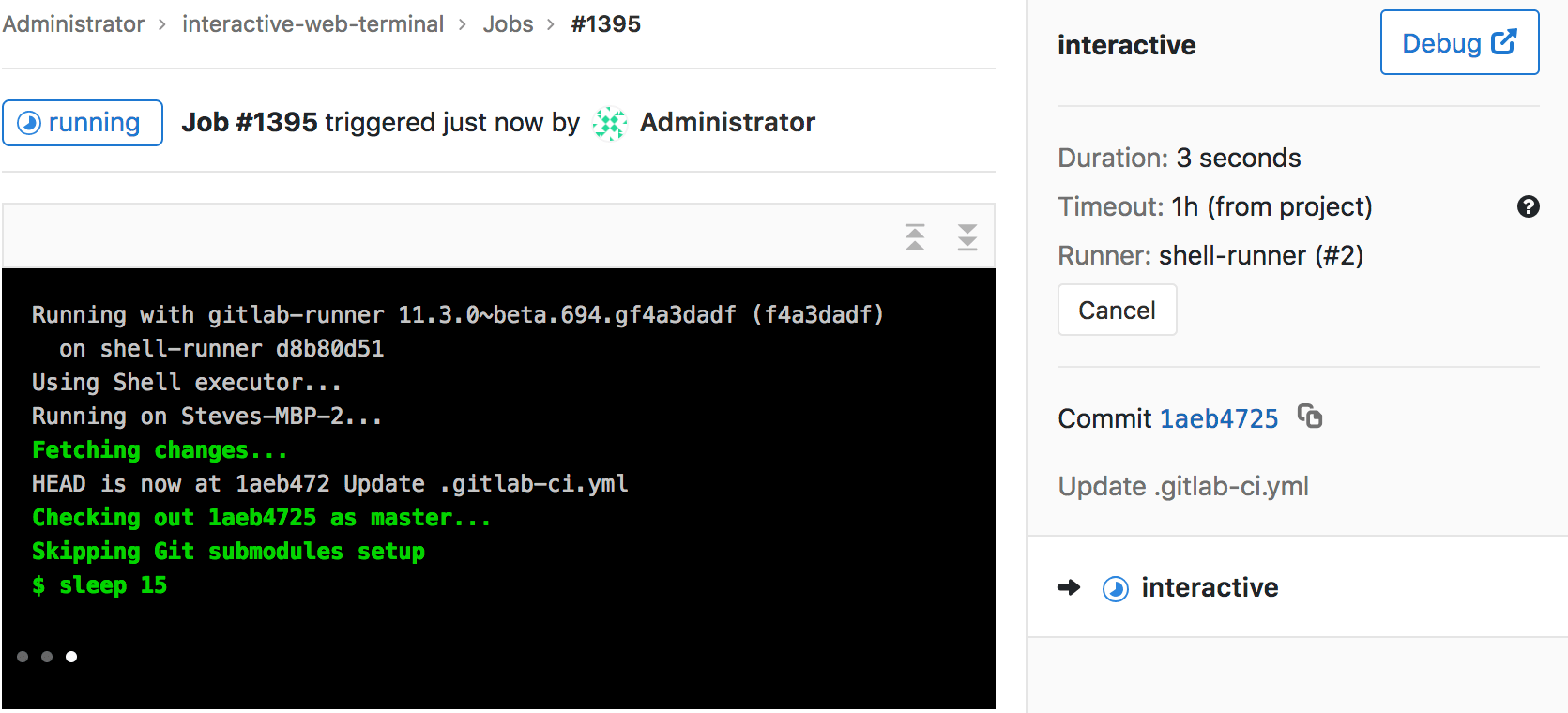
For the second option
It involves adding sleep statements in the jobs and login into the temporary docker containers in which the job is currently running.
Go into the server where your gitlab-runner is active and run
sudo docker psif you are using docker installation of gitlab-runner. Locate the docker container where your job is running.Note
You should be able to locate the name of the container directly from the debbugging window in the GitLab console.
This is an example of how the name can look like runner-uxmeaw9qq-project-180-concurrent-0-ce63e7005eee31ef-build
Use the name to login into the container by running.
sudo docker exec -it runner-uxmeaw9qq-project-180-concurrent-0-ce63e7005eee31ef-build /bin/bash
Once you have logged into the container, find the folder where your job was being run, usually
/builds/**/**, and happy debbugging.